

2Notch for Mac
Getting started
Your notch, made useful. Set up in about two minutes.
From the App Store to your first look inside the notch: installing 2Notch, every setup screen, the free trial, and how to use the notch.
1. Get 2Notch
Open the App Store on your Mac, search for 2Notch, and click Get. Downloading is free; the 14-day trial starts only when you choose to start it.
2. Open it
Open 2Notch from Launchpad or your Applications folder. It is a menu bar app, so it has no window of its own and no Dock icon once it is running. The first time, a short setup window appears.
3. Set it up
Eight short screens. Every choice here can be changed later in Settings, and Skip jumps straight to the end.
-
Welcome
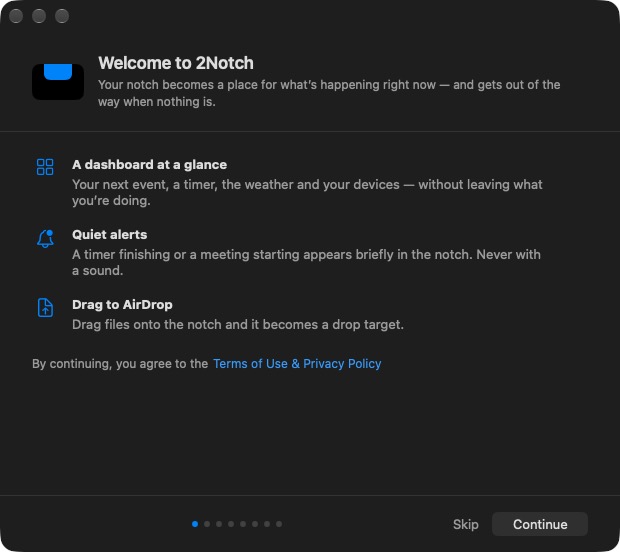
What 2Notch does. The link at the bottom opens the Terms of Use & Privacy Policy; continuing past this screen means you agree to them.
-
Opening the notch
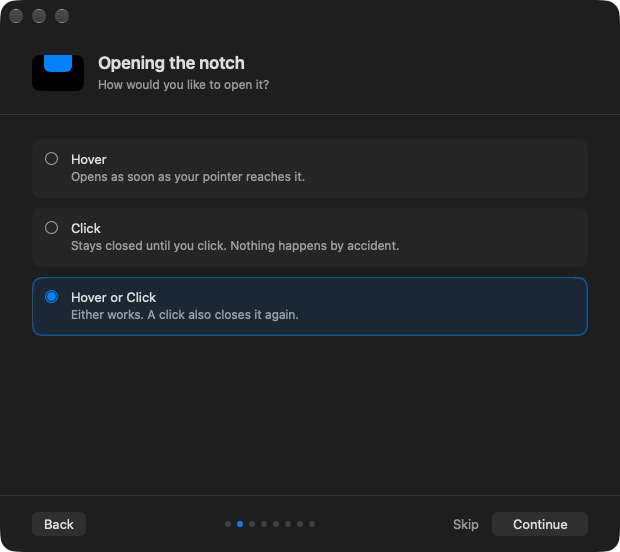
Choose how the notch opens: when your pointer reaches it, only when you click it, or either.
-
Make it yours
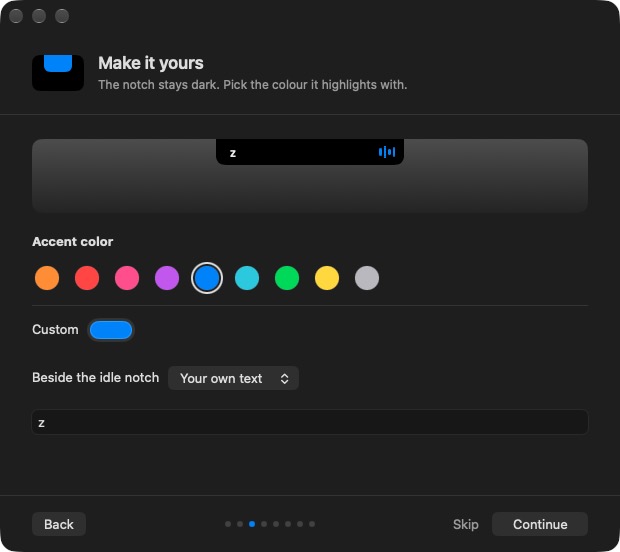
Pick the colour the notch highlights with, and what sits beside it when nothing is happening: nothing, the 2Notch mark, or a few characters of your own.
-
Choose your widgets
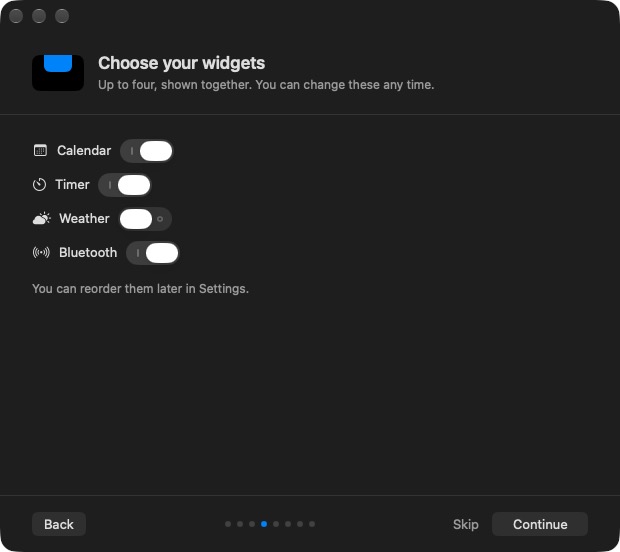
Pick up to four sections for the open notch from Calendar, Timer, Now Playing, Bluetooth batteries and Weather. New installs start with the first four; switch one off to make room for another.
-
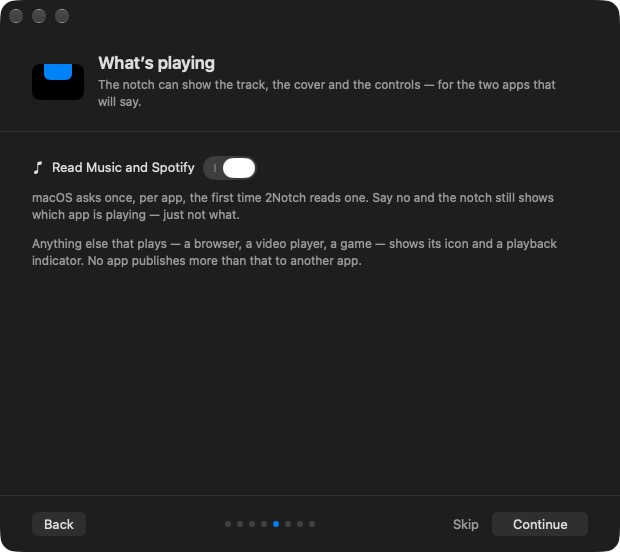
What's playing
Turn this on to see the song, cover and controls for Music and Spotify. macOS asks you once for each app the first time.
-
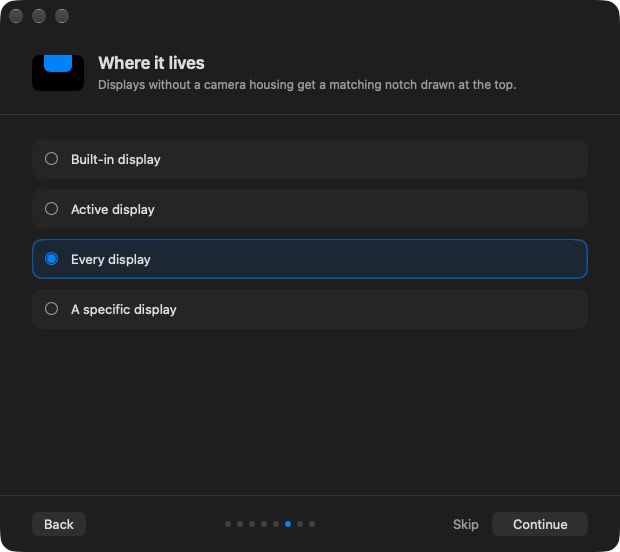
Where it lives
Show 2Notch on the built-in display, on whichever display you are using, on every display, or on one you pick.
-
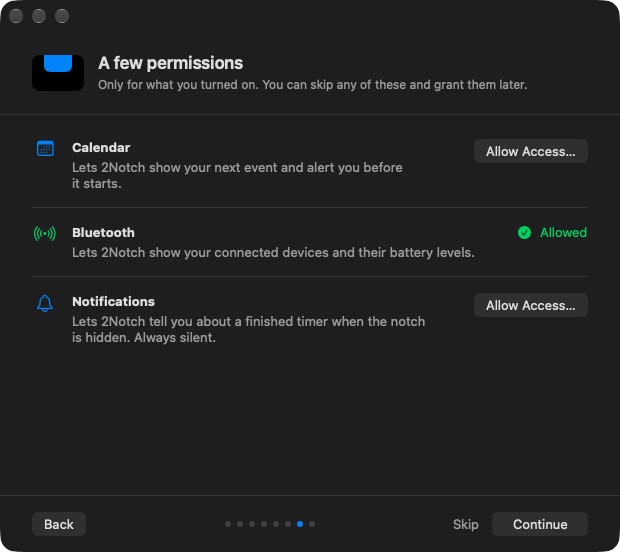
A few permissions
Only for the sections you turned on. Click Allow Access… and answer the macOS prompt, or skip and allow it later from the section itself.
-
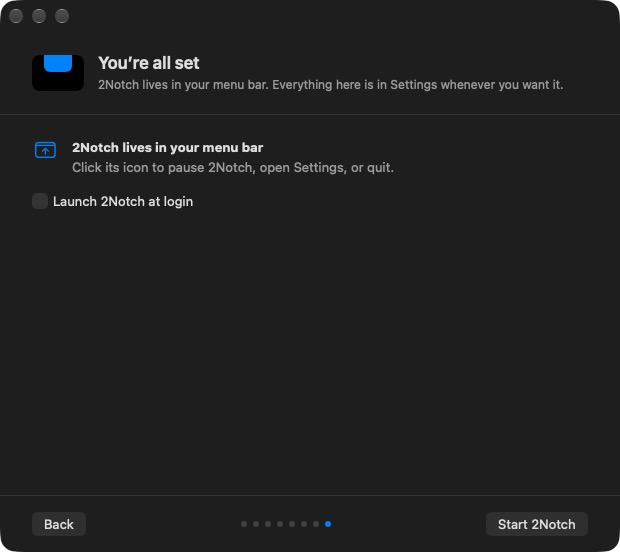
You're all set
Tick Launch 2Notch at login if you want it every time you start your Mac, then click Start 2Notch.
4. Start your free trial
A window offers the 14-day free trial. It tells you how long the trial lasts, what locks when it ends, and the one-time price. Click Start 14-Day Free Trial; nothing is charged. If you already know you want 2Notch, unlock it there instead. Bought it before? Use Restore Purchase.
5. Use the notch
- Move your pointer to the notch at the top of the screen, or click it, to open it.
- Click a section to make it fill the notch: today and tomorrow in the calendar, the full timer with its settings, the full music player, or every connected device. Click again to go back.
- While Music or Spotify plays, the notch opens straight to the player. When the music is paused, the Now Playing section is the way back to it.
- Drag a file onto the notch to send it with AirDrop.
- The 2Notch icon in the menu bar pauses the notch, opens Settings, or quits.
Hid the menu bar icon? Open 2Notch again from Applications and Settings appear. More answers are on the 2Notch support page.